Things on this page are fragmentary and immature notes/thoughts of the author. Please read with your own judgement!
OpenInTerminal
is a Finder Toolbar app for macOS
to open the current or selected directory in Terminal, iTerm, Hyper or Alacritty.
Installation and Configuration
Install OpenInTerminal
brew cask install openinterminalLaunch OpenInTerminal from Applications.
An icon (looks like a terminal) will show up in the top bar. Click on it and chose “Open in terminal”. A prompt will show up to ask you to select the default terminal application (Terminal, iTerm, Hyper, etc.) to use to open directories.
Once you’ve selected the default terminal application (to open directories), a prompt from Mac Security might show up to ask you whether to grant permission to the terminal application that you chose (if it hasn’t been granted permission before). Please grant access to the terminal application.
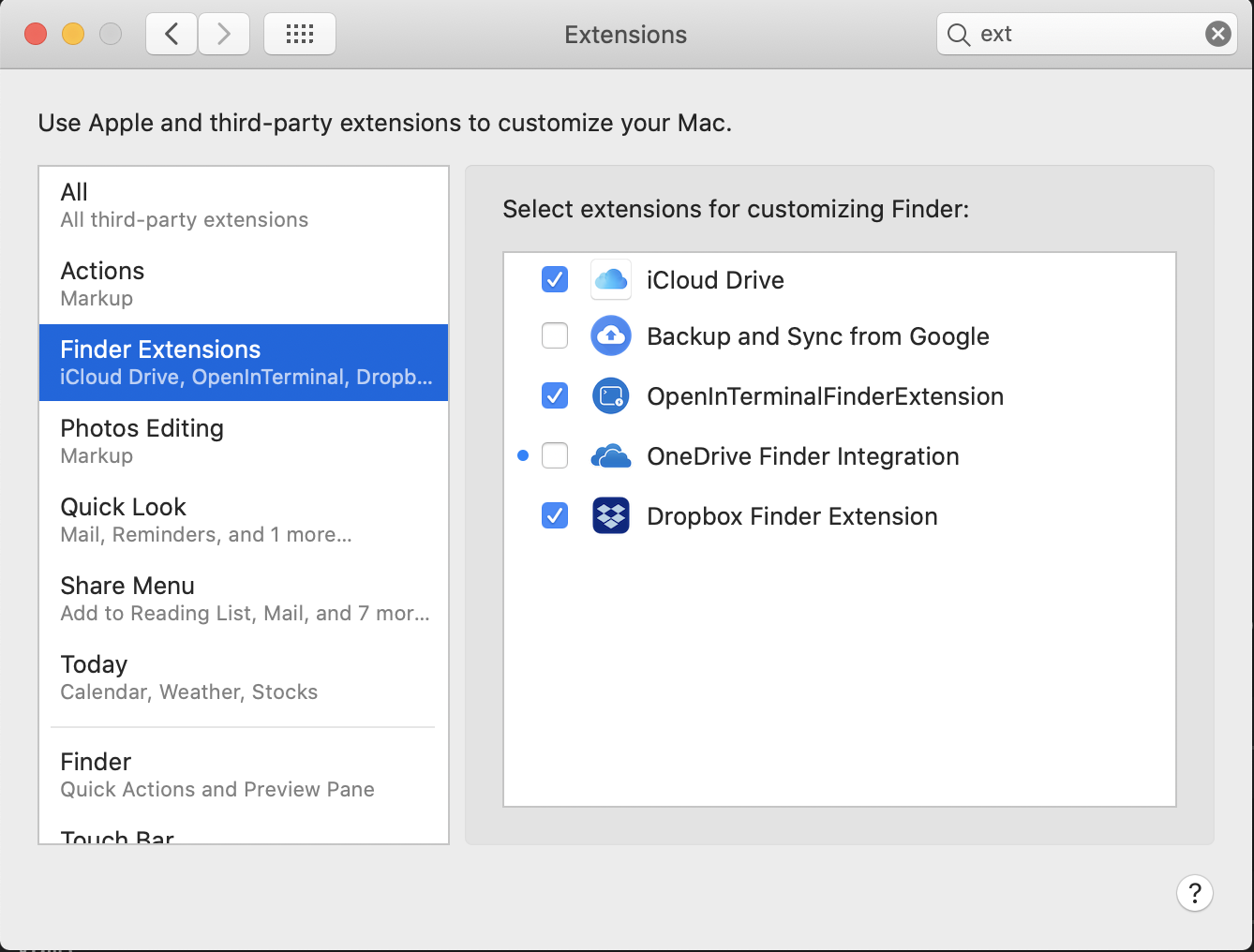
Enable Finder Extension permission by going to System Preferences -> Extensions -> Finder Extensions and then checking the permission button.