Things on this page are fragmentary and immature notes/thoughts of the author. Please read with your own judgement!
AI tools such as Gemini supports copying a single chat or response but doesn’t support copying the whole conversation yet. Depends on your use cases, there are a few differnt ways to address this issues.
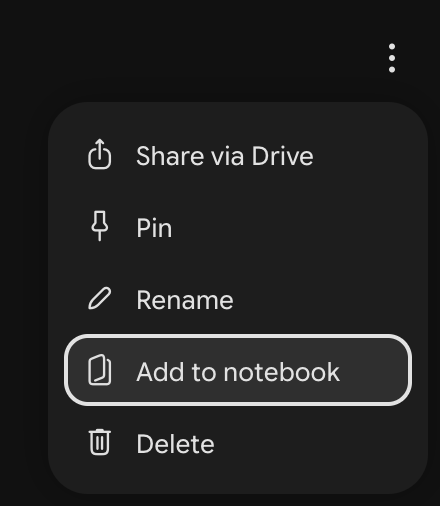
Share Conversations to NotebookLM
Use a Browser Extension
If you do this often, a free Chrome Web Store extension is the cleanest approach. For example, AI Exporter is a great choice.
The “Bookmarklet” Trick (No Install Needed)
If you don’t want to install an extension, you can create a magic bookmark that copies the whole chat as Markdown to your clipboard instantly.
Right-click your browser’s bookmarks bar and select Add Page (or Bookmark Manager -> Add New).
Name it something like
Export Gemini.In the URL or Address box, paste the following block of code exactly:
javascript:(function(){const e=document.querySelectorAll("user-query-content, message-content");if(0===e.length)return void alert("[ERROR] No chat found.");let t="# Gemini Chat Export\n\n";e.forEach(e=>{let n=e.innerText.trim();if(!n)return;e.tagName.toLowerCase().includes("user-query")?t+=`### [PROMPT]\n${n}\n\n`:t+=`### [GEMINI]\n${n}\n\n---\n\n`});const n=document.createElement("textarea");n.value=t;document.body.appendChild(n);n.select();document.execCommand("copy");n.remove();alert("[SUCCESS] Whole chat copied as Markdown! Paste it into a text file or Doc.");})();
Whenever you are on a long Gemini chat page, just click that bookmark. It will automatically scan the full conversation, format it cleanly into Markdown, and copy it to your clipboard so you can paste it right into a text editor or a Google Doc.